Erasing Overview
Erasers are brushes
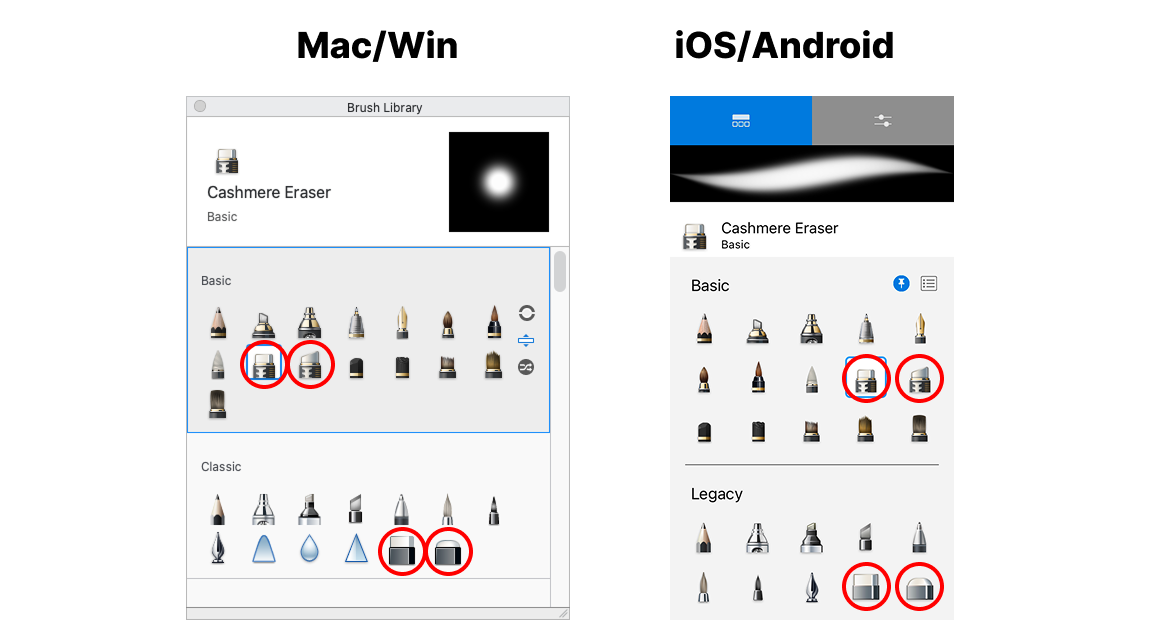
In Sketchbook, erasers are are a Brush Type, so they live with all the other brushes in the Brush Library. Erasers can be mixed and matched into your brush sets, allowing you optimize the set you pin tot he Brush Palette.
The default brush sets that come with Sketchbook include 8 different erasers to get you started. They are easily customizable by adjusting the settings.
Hard Erasers
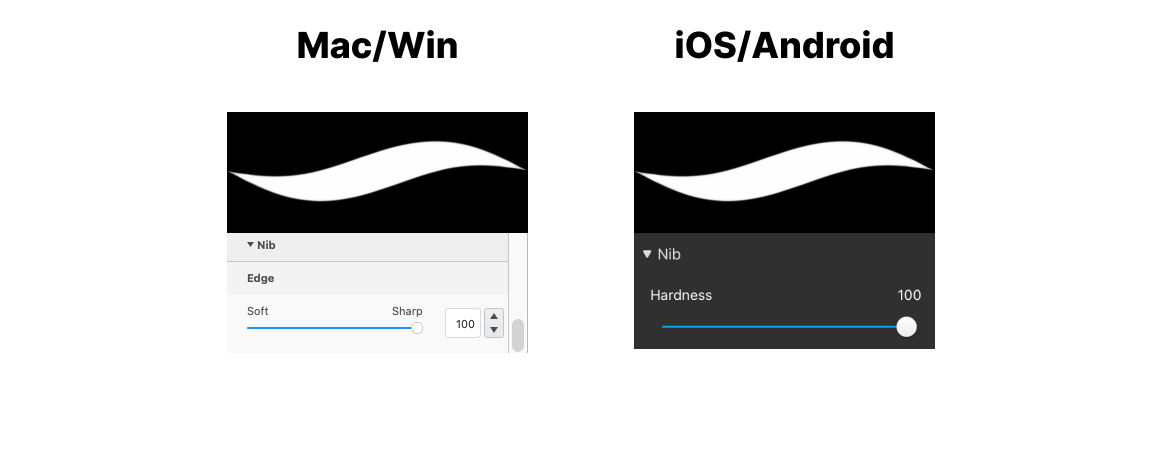
When you want to clean up line work or carve-back color layers, you typically want an eraser that will clear paint in a single stroke with a hard edge (little or no feathering). The key settings that make a hard eraser are Opacity and Hardness. You will also want to avoid custom Nib Shapes and Nib Textures as these can affect the opacity of the eraser.
Soft Erasers
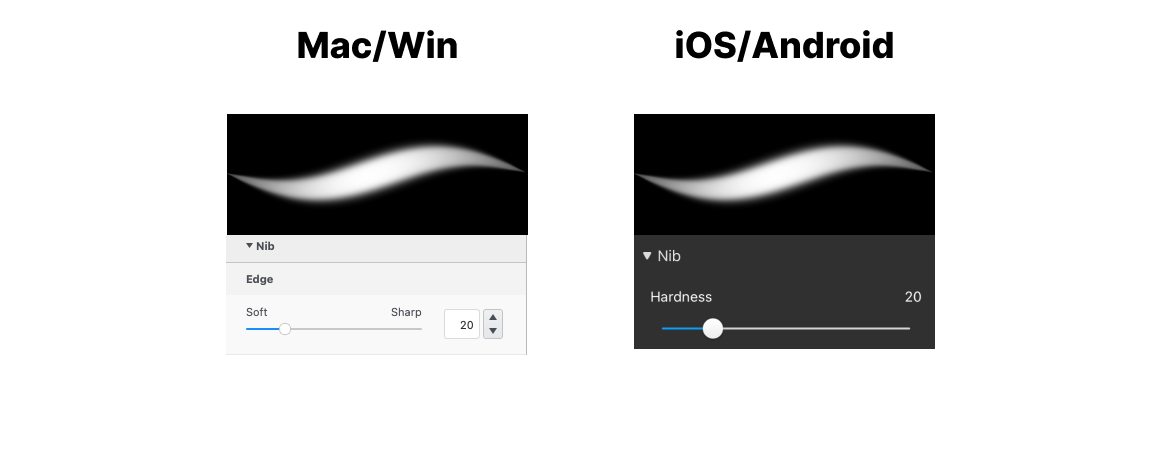
Soft erasing results are excellent for creating fading and blended results. Soft erasers have lower settings in Opacity and Hardness.
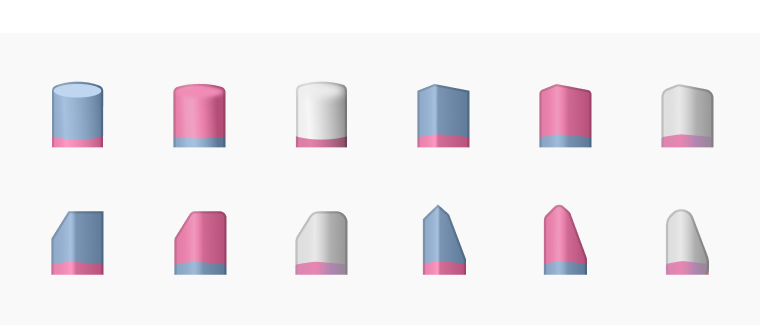
New Eraser brush set
We’ve packaged up a brush set of 12 erasers, four different profiles each in soft, medium and hard varieties. Get them here!
Shape & Texture
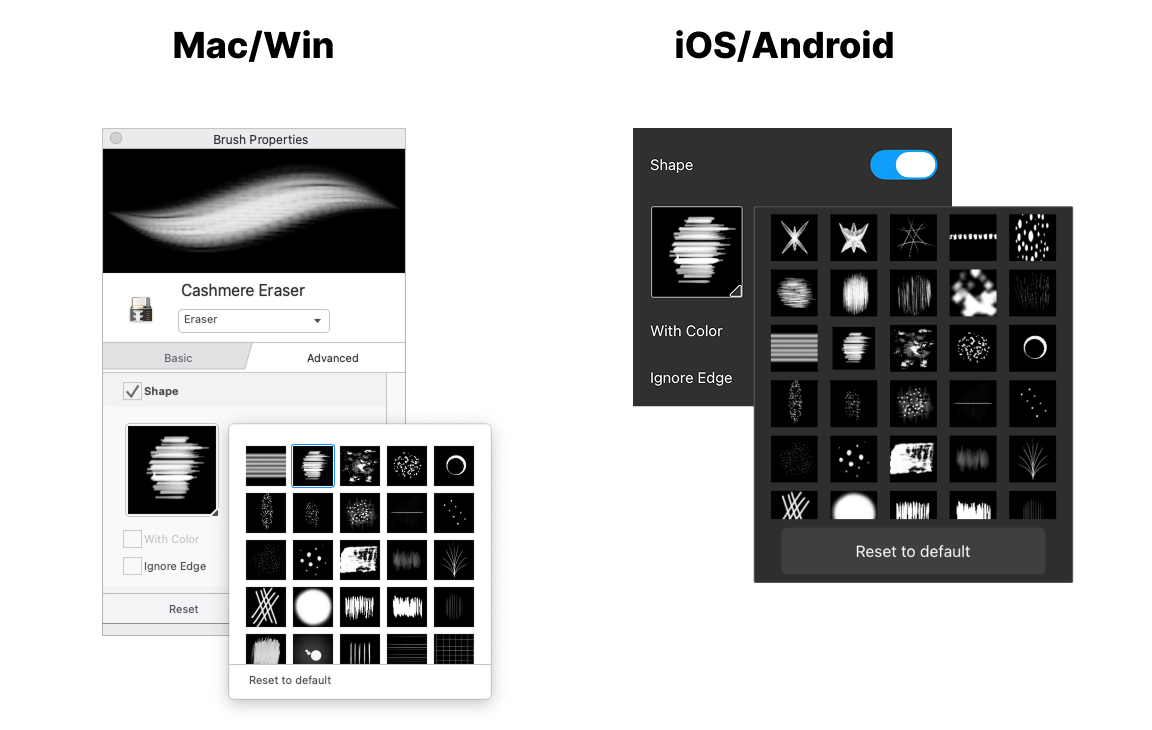
When you apply a Nib Shape, you change the stamp profile, that creates a different look. When you adjust Stamp Spacing, Rotation settings or applying some Randomness, you can achieve a variety of eraser effects.
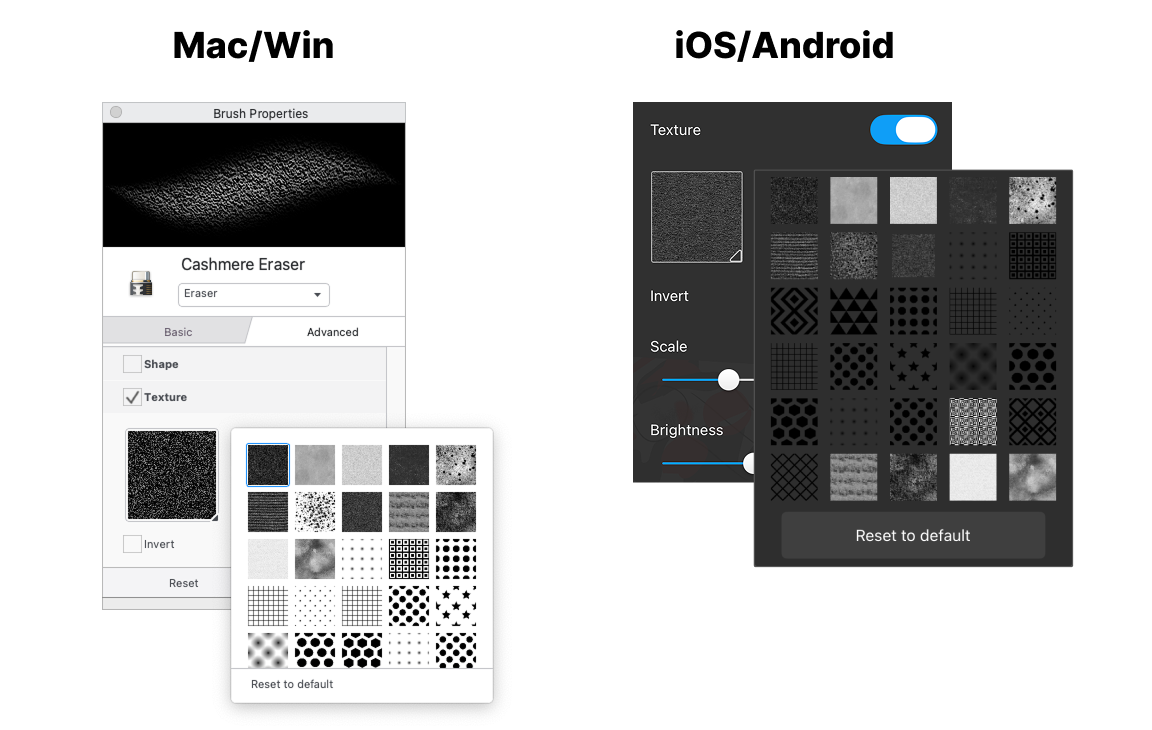
Nib Texture applies a mask to the eraser. The texture automatically repeats and can be used to create paper textures, grains, or patterns to the eraser.
Transparent Color
Sketchbook supports a transparent color in the Color Editor. When you select this color, your paint is transparent, effectively switching the brush to an eraser.
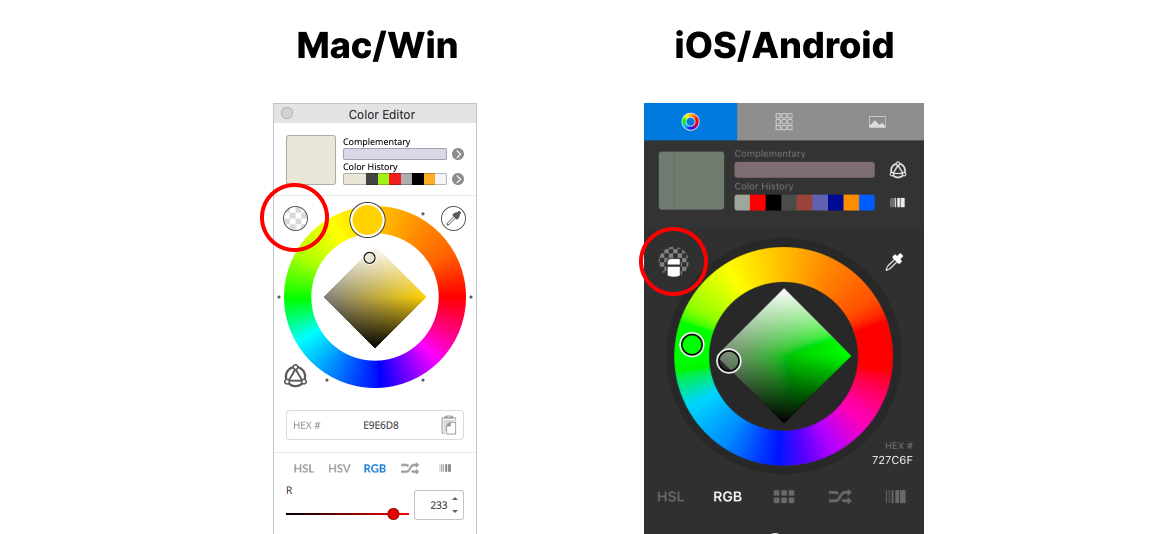
This is a powerful method when you are building up color because you can quickly switch between adding and removing paint with the same brush characteristics.
You can quickly between your current color and Transparent Color. On iOS/Android you assign it to the marking menu or a gesture.
On Mac and Windows, you can toggle transparent color in the Lagoon or assign the action to a hot key.
Clear Layer
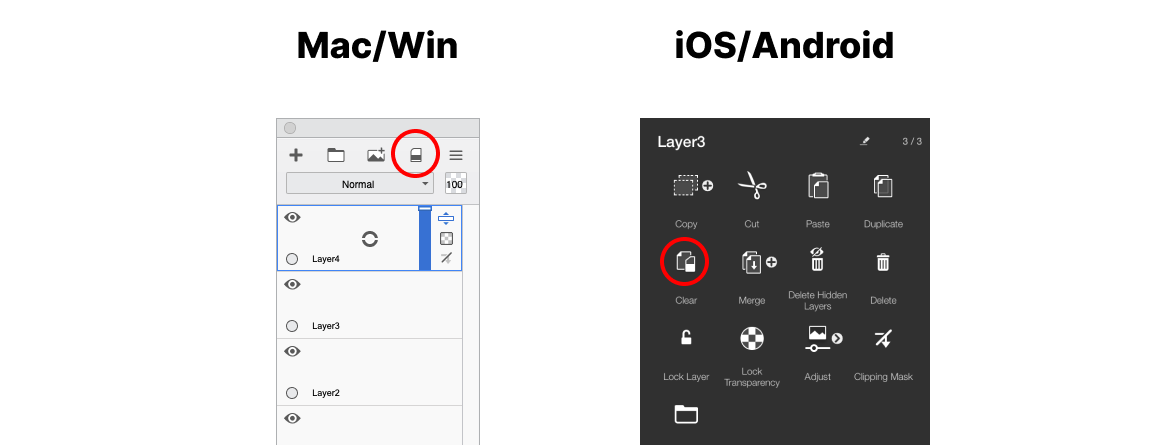
An alternative to using erasers is to use the Selection tools with the Clear command. This is a reliable way to remove all paint from selected regions of a layer.
On Mac and Windows, Clear is located in the header of the Layer Editor, the Edit Menu, and mapped to the delete key.
On iOS and Android, you will find Clear in the Layer window. It can also be assigned to the Marking Menu or gestures in Preferences.